
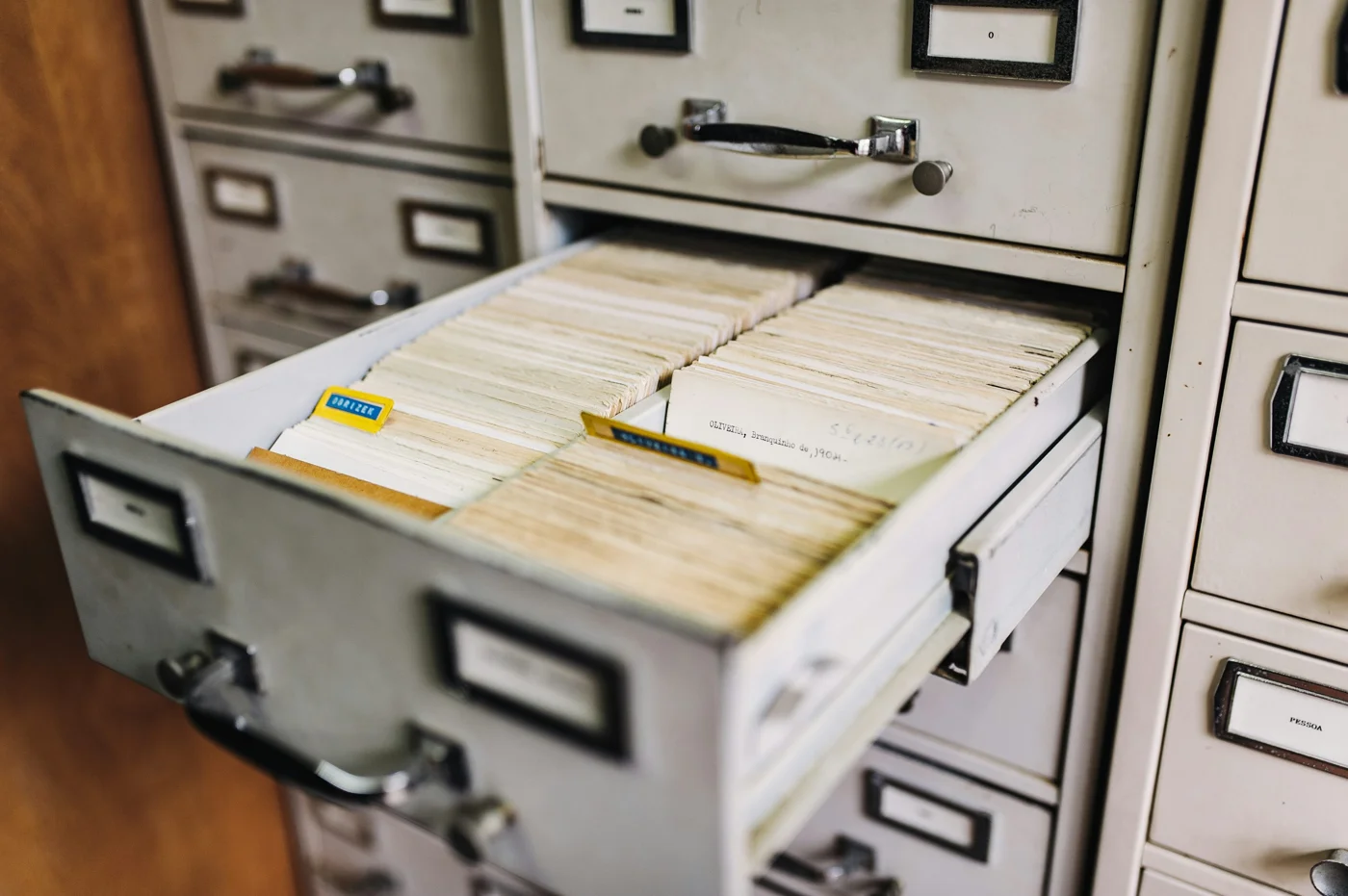
A client file can move through many places during one matter: an inbox, a shared workspace, a laptop, a scanner and an external recipient's account. A useful security review follows that journey. It asks where copies exist, who can reach them and what happens when the work ends. California Rule of Professional Conduct 1.6 addresses a lawyer's duty not to disclose protected client information, subject to the rule's conditions and exceptions. A technical review can help a firm understand its systems, while the firm determines its professional obligations. State Bar of California rules
Start with one representative workflow
Use a fictional matter to map how documents arrive, where staff save them and how they are shared. Ask staff to describe what they actually do. Instructions that assume everyone uses one repository can miss attachments stored in downloads folders or documents sent through personal accounts. Write down the approved location for each stage of the workflow. Identify any temporary copies and who decides how long to keep them. Retention, preservation and client-file obligations need the firm's direction before deletion rules are introduced.
Review access by role and matter
Compare current access with current responsibilities. An employee who changed roles may still belong to an old group. A former contractor may retain a guest account. A broad shared folder may expose material beyond the people who need it. Create a short access review with a named owner. Record the system, the group or account, the business reason and the review date. Where a matter requires restricted access, confirm that the actual repository and sharing settings support it. A folder name alone does not establish a restriction.
Make sharing choices visible
Secure file sharing for law firms starts with a clear decision about recipients, permissions and how long access should remain available.
For firms using Microsoft 365, link settings deserve particular attention. Microsoft explains that Anyone links can be used by anyone who obtains the link, while Specific people links require the designated recipient to authenticate. Microsoft sharing-link guidance Choose a default sharing approach appropriate to the firm's work. Before sending a document, confirm the recipient, the files included, whether editing is needed and when access should end. Test the recipient experience with a harmless sample so staff know how approved sharing works. Avoid treating an authenticated link as a complete solution. The recipient may still be able to download or copy information, depending on the platform and settings. Staff need clear instructions about which material is appropriate to share.
Include the devices people carry
Ask how the firm verifies device encryption, updates, screen locking and approved sign-in methods. Determine what staff should do if a laptop or phone is lost. Include personal devices if they are permitted to access firm information, and make the expectations explicit before access is granted. Check the departure process too. Someone should own account access, active sessions, shared mailbox permissions, device return and the transfer of work materials. Test the checklist against a fictional departure rather than waiting for an urgent real one.
Turn findings into a manageable plan
Choose a few improvements with clear owners and completion dates. For example, review old guest accounts, standardize external sharing and document the lost-device process. Recheck the settings after implementation and show staff the approved workflow. Mytek Pros offers cloud services that include identity and access configuration. Explore those services, then discuss a review focused on your firm's systems. Share general IT needs first, without client documents. This article offers technical planning ideas, not legal advice.
Explore IT support for law firms across California and our cloud services to discuss a scope that fits your practice.